



# Master Your Workflow: 3 Touchpad Hacks to Speed Up Navigation
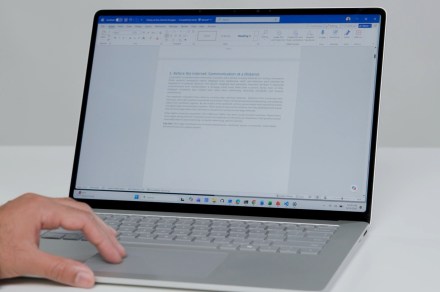
If you spend your workday navigating dense codebases, lengthy PDFs, or endless web articles, you are likely all too familiar with the “swipe-and-repeat” fatigue. Constantly lifting your fingers to reset your position on a trackpad is an inefficient drain on your productivity. Fortunately, Microsoft has introduced a suite of touchpad enhancements designed to streamline how you move through digital content on Windows laptops.
By leveraging these built-in features, you can transform your navigation experience from a repetitive chore into a fluid, high-speed process.
## 1. Harnessing Accelerated Scrolling
The most significant upgrade to the Windows experience is the implementation of accelerated scrolling. Much like the momentum-based scrolling long favored by macOS users, this feature allows your document to “glide” based on the velocity of your swipe.
Instead of manually dragging your finger across the entire surface of the trackpad to reach the bottom of a page, a quick, flicking motion triggers a rapid scroll that continues to move even after your fingers leave the surface. This is a game-changer for power users who need to jump between sections of a document instantly. This feature is currently live, meaning you can test the responsiveness of your trackpad immediately.
## 2. Reducing Physical Strain Through Velocity
The core philosophy behind these Microsoft updates is to minimize the physical effort required for basic navigation. By optimizing the relationship between your finger movement and the screen’s response, the system now interprets intent more intelligently.
Think of it like shifting gears on a bicycle: instead of pedaling constantly to maintain speed, you can apply a burst of energy to gain momentum, allowing you to coast through the “flatter” parts of your document. This reduces the repetitive strain on your wrists and fingers, making long-form reading or editing sessions significantly more comfortable.
## 3. Optimizing Your Touchpad for Precision
Beyond just speed, these updates focus on the precision of your input. When you are working with complex layouts or fine-tuning code, the ability to stop on a dime is just as important as the ability to scroll quickly.
To get the most out of these improvements, ensure your Windows drivers are up to date. As Microsoft continues to refine these gestures, the goal is to make the touchpad feel like a natural extension of your hand rather than a peripheral device. Whether you are a developer, a student, or a casual browser, these adjustments ensure that your hardware keeps pace with your workflow.