




Optimizing Your Apple Device: Reclaiming Storage from Apple Intelligence
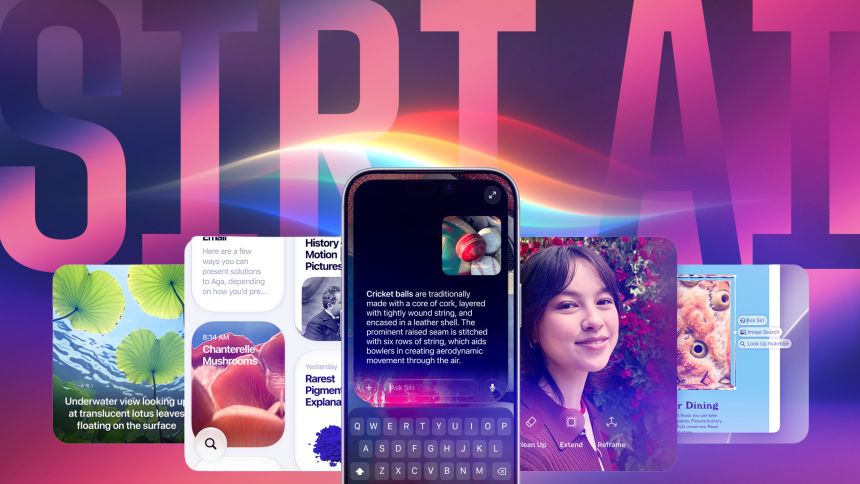
With the arrival of iOS 27 and MacOS 27 this past September, Apple integrated its advanced Siri AI, driven by the new Apple Intelligence framework. While this upgrade significantly boosts the assistant’s capability to handle complex requests, it comes with a notable trade-off: a substantial footprint on your device’s internal memory.
### The Hidden Cost of AI Integration
The convenience of on-device AI processing requires significant local resources. In practical usage, the storage demand is quite high; for instance, my primary iPhone currently allocates roughly 6.4 GB to these features, while my MacBook Neo demands a much larger 17.9 GB.
To put this into perspective, that 17.9 GB on a Mac is equivalent to storing roughly 4,000 high-resolution JPEG photos or several hours of 4K video. For users with base-model devices, this “AI tax” can quickly lead to the frustrating “Storage Full” notification that interrupts your workflow and prevents you from capturing new memories.
### Managing Your Digital Footprint
If you find that the current iteration of Apple Intelligence doesn’t align with your daily needs, or if you simply prioritize local storage for your personal media library, you have the option to deactivate these features. By disabling the AI-enhanced Siri components, you can effectively purge these large data sets from your system.
This is a strategic move for power users who prefer to manage their storage manually rather than relying on automated cloud offloading. Reclaiming these gigabytes provides the breathing room necessary to keep your device running smoothly without the constant pressure of managing file sizes.