



Does Your USB Port Create a Bottleneck for Wireless Speeds?
For many users, a Wi-Fi USB dongle serves as the most convenient method to upgrade an older computer’s connectivity. With the latest standards like Wi-Fi 6 and Wi-Fi 7 boasting theoretical throughputs that exceed one gigabit per second, it is natural to question whether the physical USB interface on your laptop or desktop is actually hindering your internet performance.
Decoding Marketing Hype vs. Technical Reality
To determine if your hardware is being throttled, you must first look past the flashy numbers printed on the packaging. Manufacturers frequently use labels like “AX1800” for Wi-Fi 6 hardware or “BE6500” for Wi-Fi 7 devices. It is critical to recognize that these figures are “pseudo-classes”-marketing metrics that aggregate the maximum theoretical speeds across all bands simultaneously. In a real-world environment, you will never achieve these numbers, as they do not account for signal interference, distance from the router, or the overhead of network protocols.
The USB Interface: Is It a Limiting Factor?
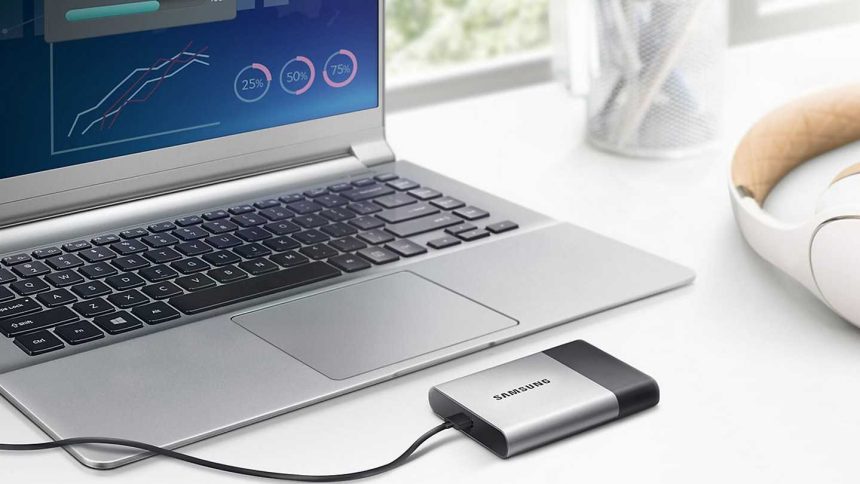
The actual bottleneck often lies in the USB standard itself rather than the wireless adapter. For instance, a USB 2.0 port has a theoretical maximum bandwidth of 480 Mbps. If you plug a high-performance Wi-Fi 6 adapter into a legacy USB 2.0 port, your connection will be physically capped by the port’s architecture, regardless of how fast the adapter is capable of transmitting data.
To put this into perspective, consider a high-speed highway: even if your car (the Wi-Fi adapter) is capable of driving at 200 mph, you are forced to crawl at 30 mph if the road (the USB port) is restricted to that speed. To ensure you aren’t leaving performance on the table, always prioritize connecting your dongle to a USB 3.0 (or higher) port, which is typically identified by a blue or red plastic insert inside the connector. These ports offer bandwidths of 5 Gbps or more, providing plenty of “headroom” for even the fastest wireless standards currently available.
Optimizing Your Wireless Setup
Beyond the port type, physical placement plays a massive role in performance. USB dongles are often tucked behind the PC tower, where the metal chassis acts as a shield, blocking the signal from your router. Using a short USB extension cable to move the adapter to a more open, elevated position can often yield a more significant speed increase than upgrading the adapter itself. By combining a USB 3.0 connection with optimal placement, you ensure that your hardware is working at its full potential rather than being stifled by outdated interfaces or physical obstructions.