



When you purchase through links in our articles, we may earn a small commission. This doesn’t affect our editorial independence.
Modernizing Your Legacy PC: A Guide to Adding USB-C Connectivity
The landscape of peripheral connectivity has shifted dramatically. USB-C has effectively become the universal language for modern hardware, serving as the primary interface for everything from high-speed external NVMe drives and professional-grade cameras to sleek docking stations and the latest mobile devices. If your current Windows machine is a few years old, you might find yourself staring at a sea of rectangular USB-A ports, feeling left behind by the modern hardware ecosystem.
Why USB-C is Now Essential
The transition to USB-C isn’t just about the reversible connector shape; it’s about the underlying capabilities. According to recent industry data, USB-C adoption in consumer electronics has surged by over 60% in the last three years alone. Unlike the legacy USB-A standard, USB-C supports higher power delivery (up to 240W with Power Delivery 3.1) and significantly faster data transfer speeds, such as USB4’s 40Gbps throughput. Relying on older ports often means bottlenecking your high-performance gear, but fortunately, you don’t need to replace your entire computer to bridge this gap.
The Quick Fix: USB-A to USB-C Adapters
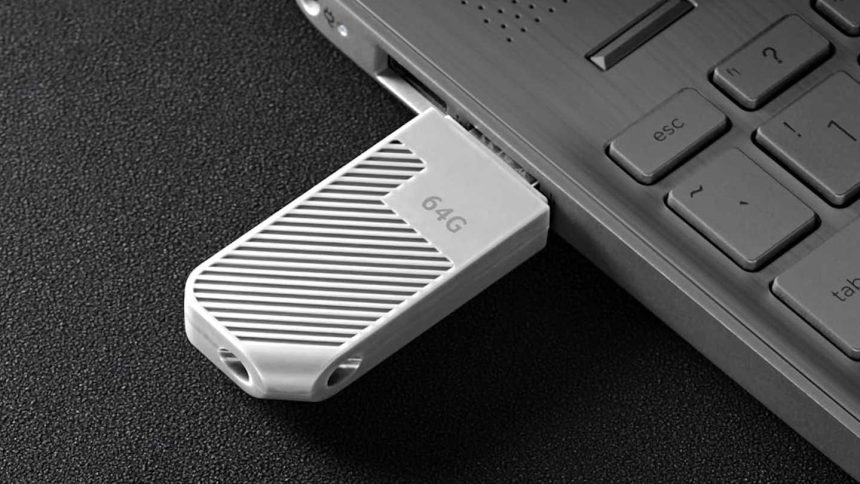
If you need an immediate, low-cost solution, the simplest path is utilizing a USB-A to USB-C adapter. Think of this like using a travel plug converter for your electronics; it allows your new hardware to physically connect to your existing infrastructure. While this is perfect for connecting a smartphone or a basic flash drive, keep in mind that you are still limited by the speed and power output of the original USB-A port. It is a convenient “bridge” solution rather than a performance upgrade.
The Power User’s Choice: PCIe Expansion Cards
For desktop users who require the full bandwidth and power delivery of modern USB-C, a PCIe expansion card is the superior route. By installing a card directly into an open PCIe slot on your motherboard, you are essentially giving your PC a native, high-speed upgrade. This method bypasses the limitations of your older ports entirely, providing dedicated bandwidth that is ideal for external SSDs or high-resolution monitors. It is the equivalent of installing a new engine in a classic car-you retain the chassis you love while gaining the performance of a modern machine.